Skip to content

Recent Posts

  • ICE OUT For GOOD – Actions You Can Take
  • Medina ICE Out For Good Rally Photos And Press Release
  • Caturday – Sleepy Smol Fren
  • Fermented Friday – Winking Lizard Tavern
  • ICE Out For Good, Medina County Ohio

Most Used Categories

  • Kevin (726)
    • Music (133)
    • Throwback Thursday (83)
    • Cats (79)
    • Fermented Friday (73)
  • Marching Arts (443)
    • 2025 Indoor Season (54)
  • 2022 Winking Lizard World Tour Of Beers (99)
  • 2023 Winking Lizard World Tour Of Beers (86)
  • 2024 Winking Lizard World Tour Of Beers (85)
Skip to content

Medi-Nerd 2

Gadget Boogaloo

Subscribe
  • Social Media Links
  • Marching Arts
    • 2024 Indoor Season
    • 2024 Drum Corps Season
    • 2024 Marching Band Season
  • 2024 Winking Lizard World Tour Of Beers
  • Home
  • 2023
  • February
  • 18
  • Turning on Twitter Two Factor Authentication with an Authenticator App
Turning on Twitter Two Factor Authentication with an Authenticator App

Turning on Twitter Two Factor Authentication with an Authenticator App

Kevin GaminFebruary 18, 2023

Elon Musk continues to anger and frustrate long time Twitter members who don’t want to kowtow to his “Twitter Blue” money grab. Today, Twitter users who have SMS two factor authentication turned on for their accounts received this message when they opened the website or app:
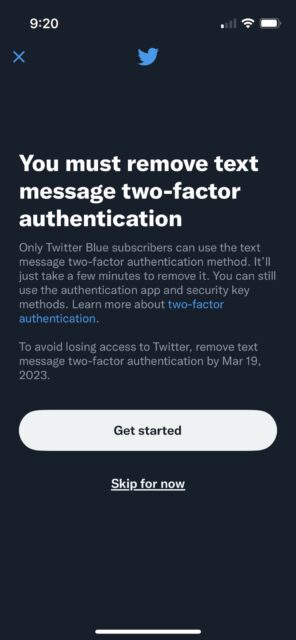
Twitter's pop-up message informing SMS 2FA users the service is for Twitter Blue subscribers as of March 20, 2023

What the message DOESN’T tell you is that you have other options besides getting your 2FA codes via text message, options you may already use for other services. We’re going to look at setting up one of those options, using an authenticator app, in this article.

First off, you will need an authenticator app on your phone. Here are some of your options on iOS and Android:

  • 2FAS – iOS and Android
  • Duo – iOS and Android
  • Authy – iOS and Android

Once you have your authenticator app of choice, you can set up your Twitter 2FA in it. These instructions are for the Twitter website, but you can access your 2FA settings in the mobile app on iOS and Android as well.

    1. In the navigation bar on the left side of the Twitter page, click on “More”.
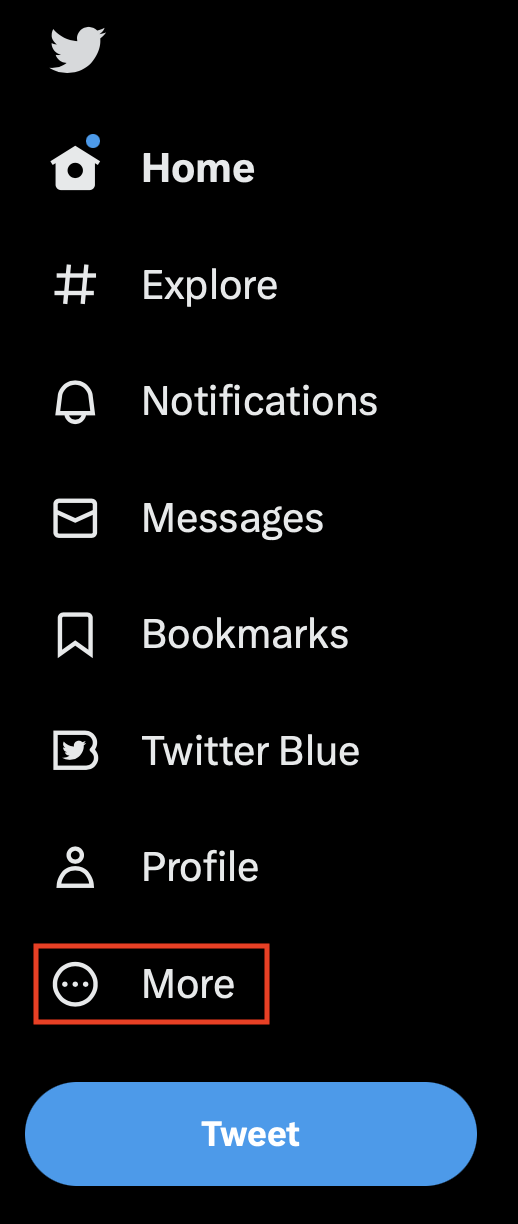
      In the navigation bar on the left side of the Twitter page, click on "More".
    2. In the menu which appears, click on “Settings and Support” to expand it, then click on “Settings and privacy”.
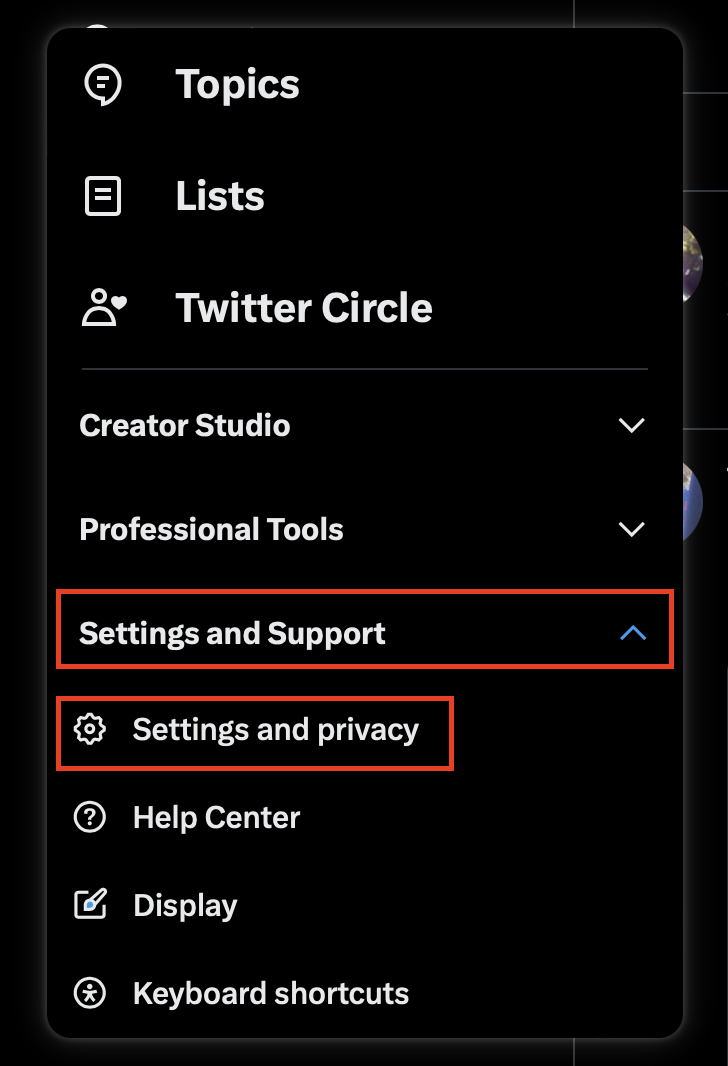
      In the menu which appears, click on "Settings and Support" to expand it, then click on "Settings and privacy".
    3. On the Settings page, select “Security and account access” on the left, then select “Security” on the right.
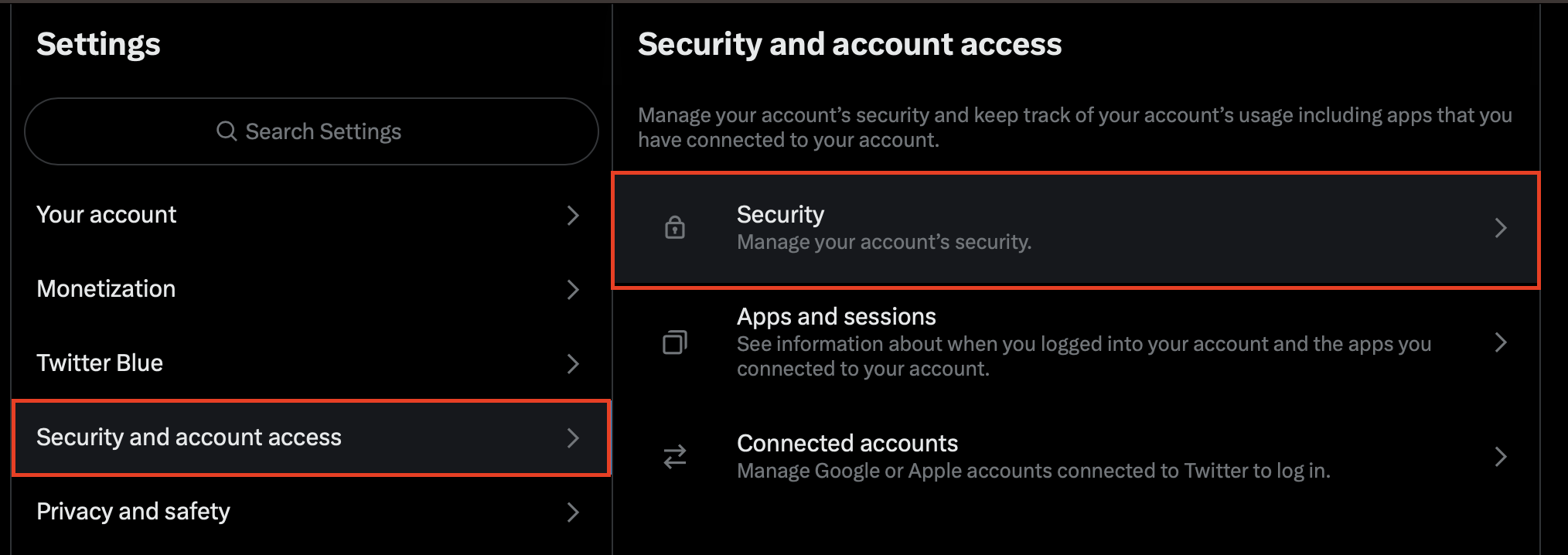
      On the Settings page, select "Security and account access" on the left, then select "Security" on the right.
    4. Under Security, select “Two-factor authentication”.
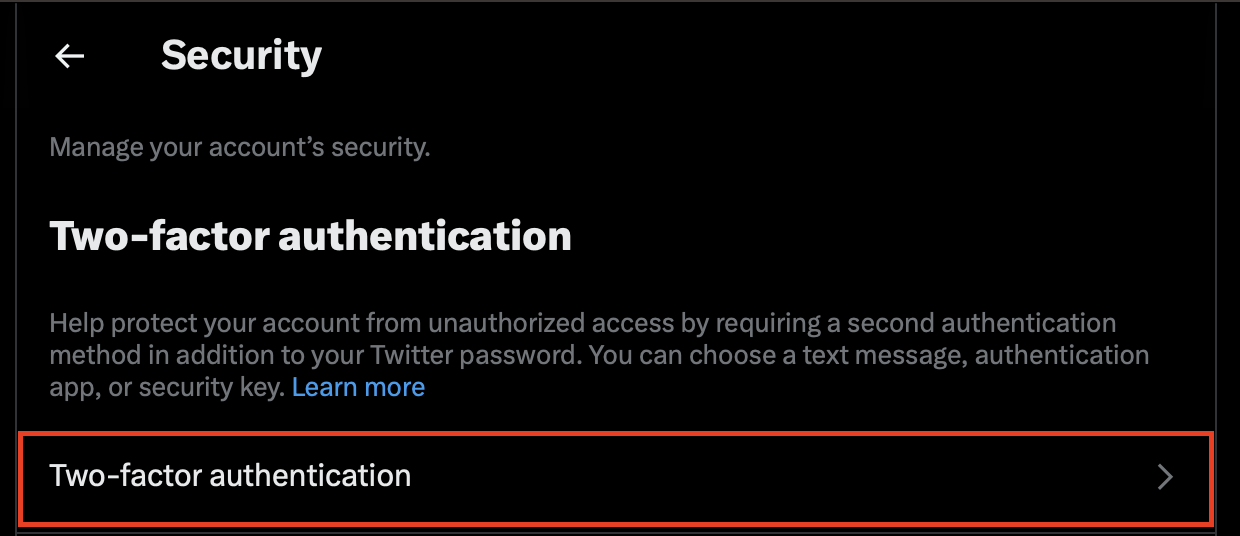
      Under Security, select "Two-factor authentication".
    5. Under Two-factor authentication, check the box for “Authentication app”.
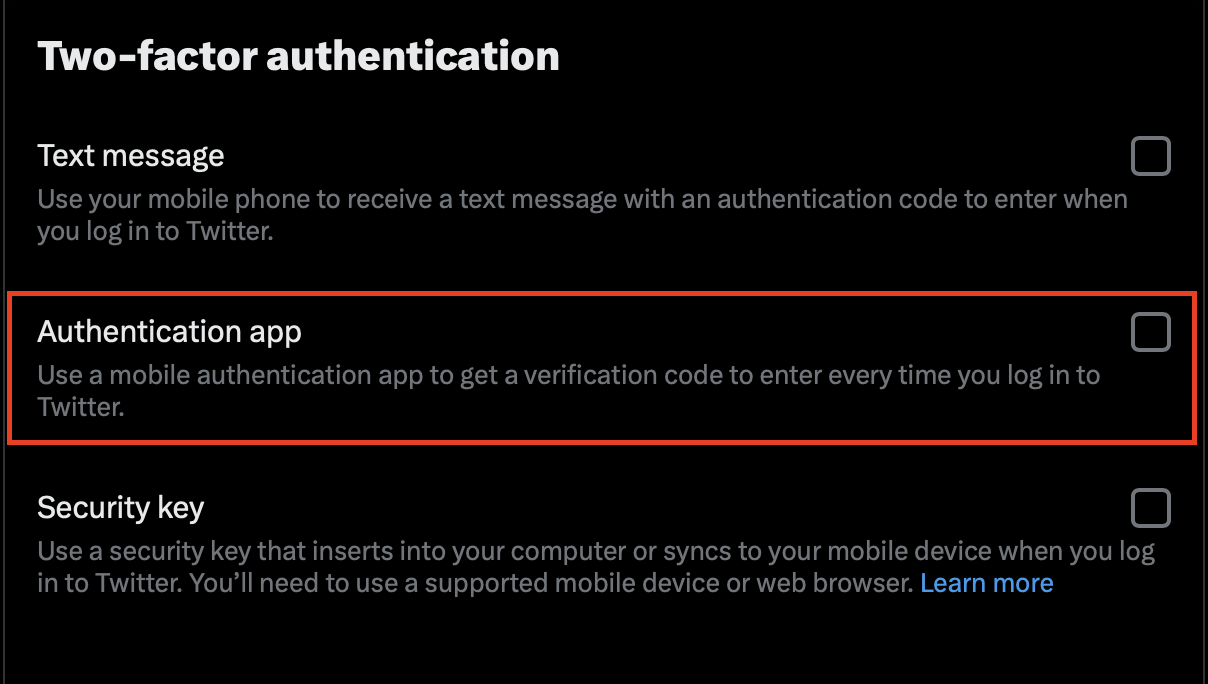
      Under Two-factor authentication, check the box for "Authentication app".
    6. In the pop-up message which appears, click the “Get Started” button.
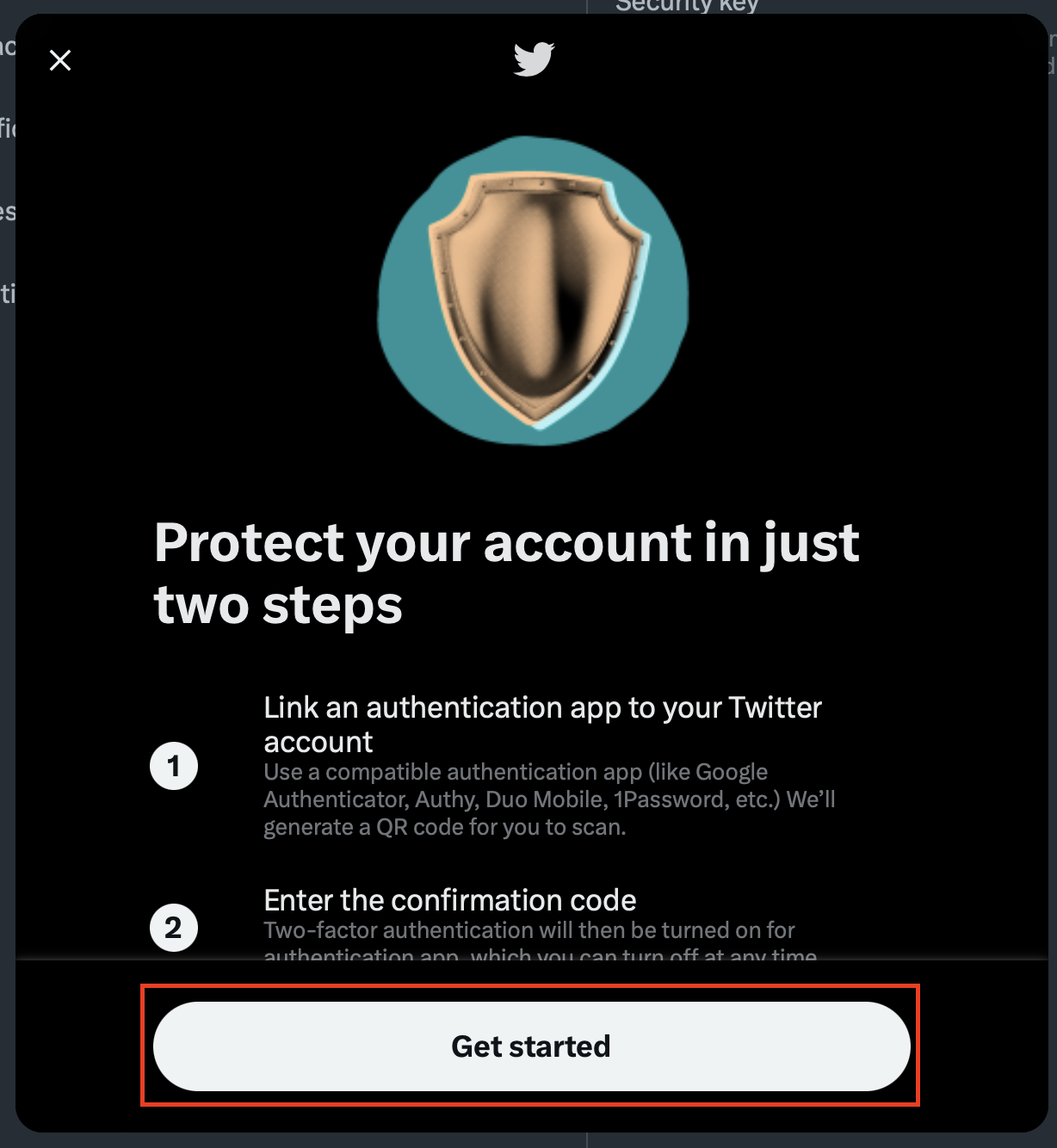
      In the pop-up message which appears, click the "Get Started" button.
    7. In your authenticator app, use your phone’s camera to scan the QR code on the screen. Click “Next” once the code is scanned and you’ve added Twitter to the authenticator app.
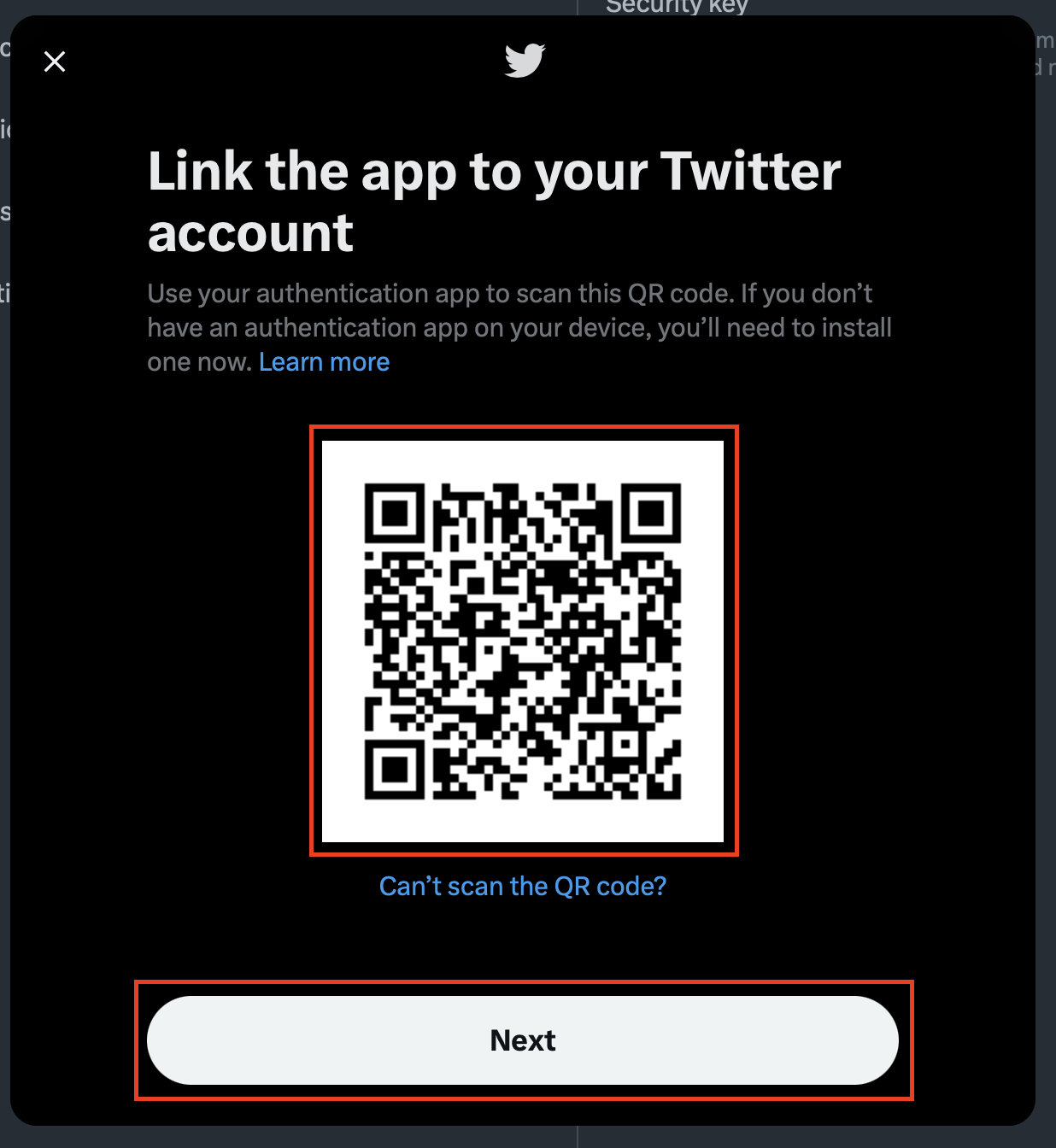
      In your authenticator app, use your phone's camera to scan the QR code on the screen. Click "Next" once the code is scanned and you've added Twitter to the authenticator app.
    8. Enter the code currently showing for Twitter in your authentication app, then click the “Confirm” button. Note that the code usually refreshes every 30 seconds, so you may need to wait for the next code if you’re about to hit that time limit.
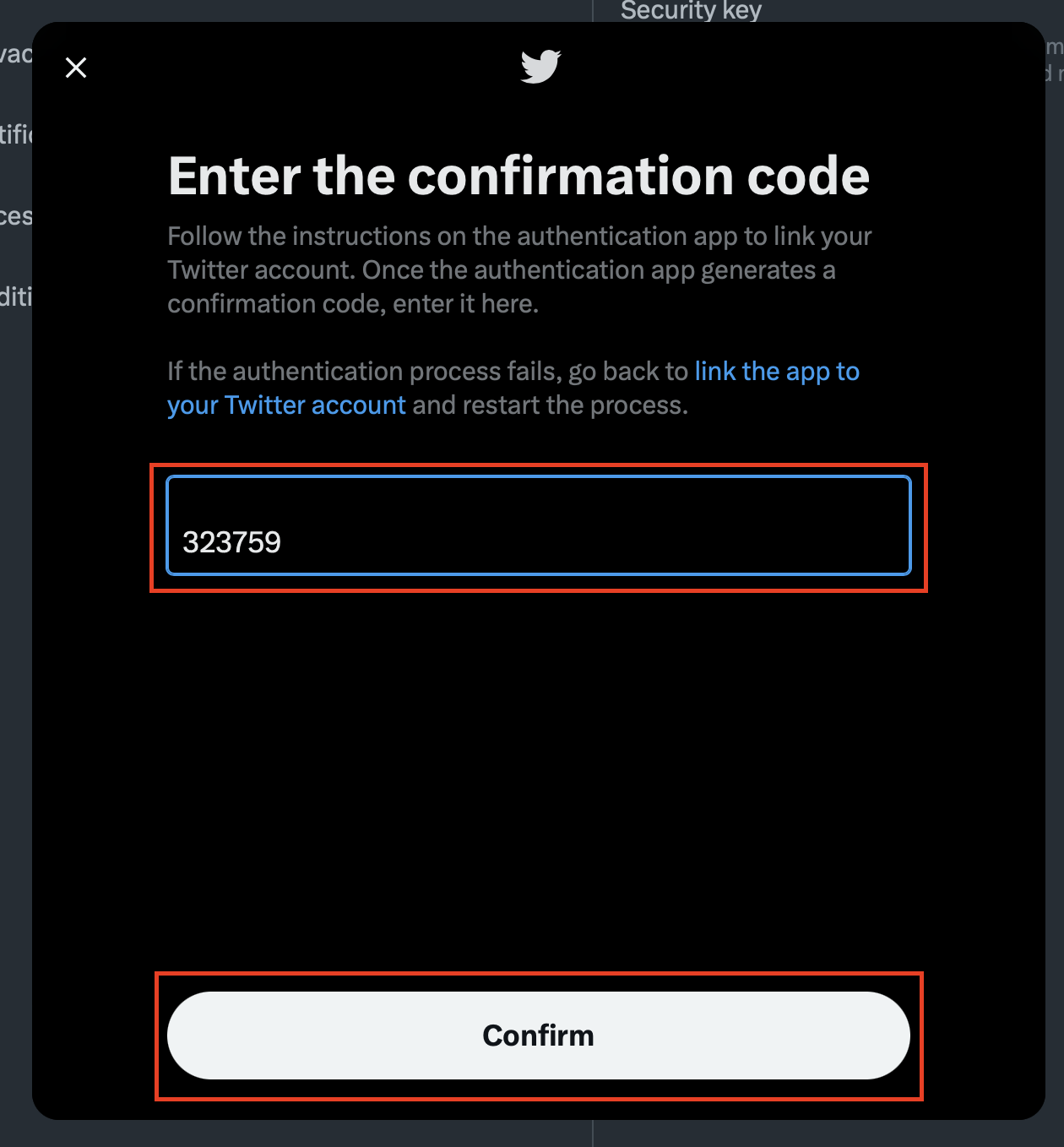
      Enter the code currently showing for Twitter in your authentication app, then click the "Confirm" button. Note that the code usually refreshes every 30 seconds, so you may need to wait for the next code if you're about to hit that time limit.
    9. When you get to the You’re all set screen, click on “Get Backup Code”.
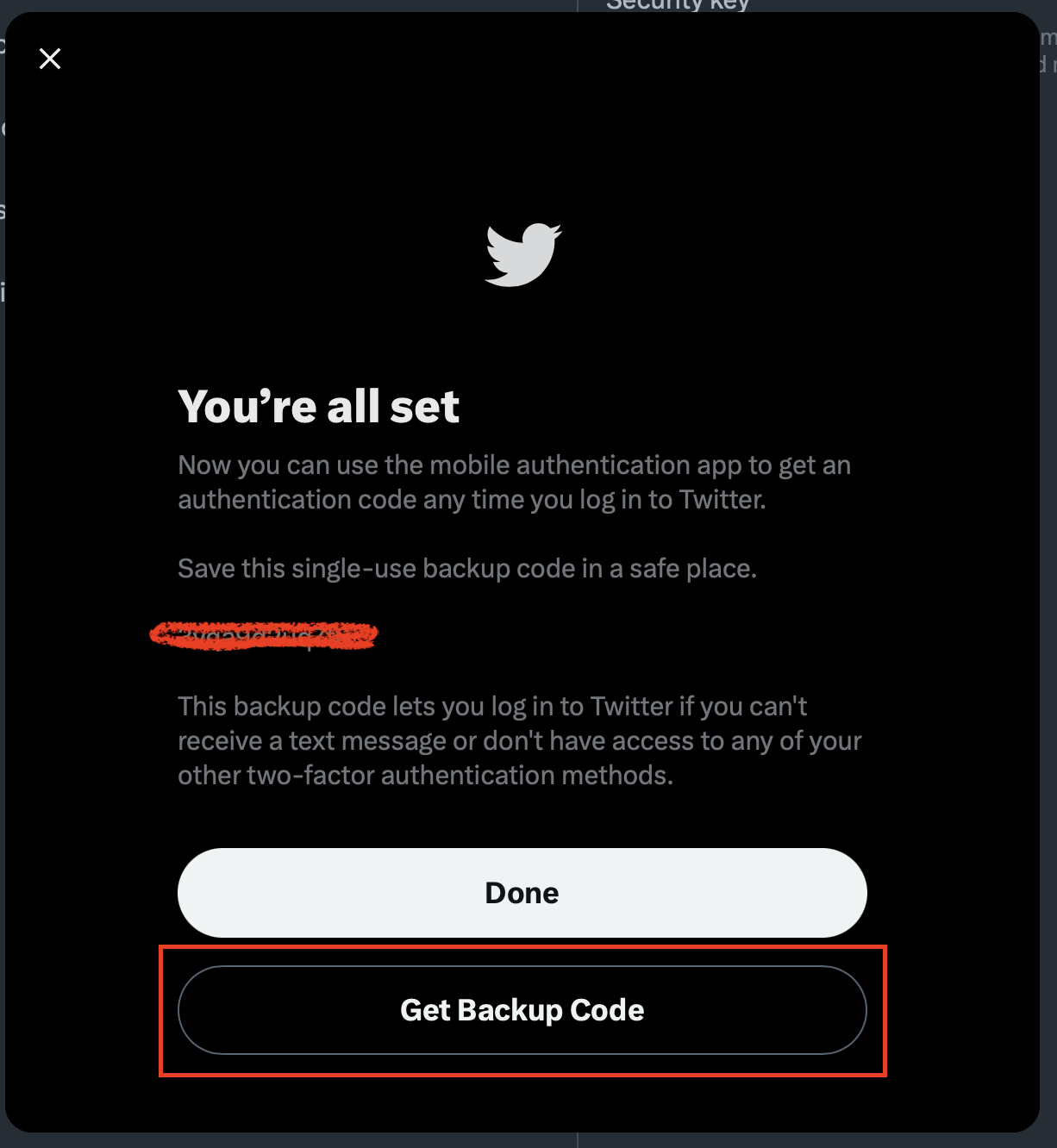
      When you get to the You're all set screen, click on "Get Backup Code".
    10. Make note of the backup code, either writing it down or saving it to your notes application on your phone. You will need this code if you don’t have access to your authenticator app.
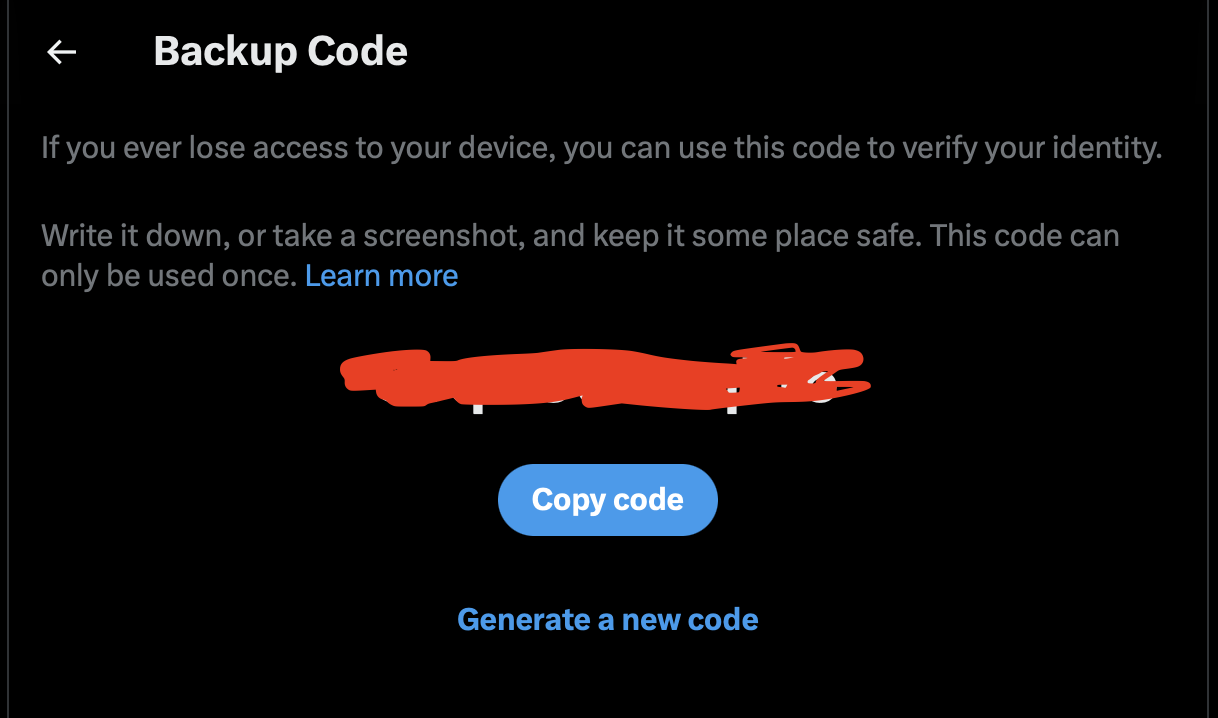
      Make note of the backup code, either writing it down or saving it to your notes application on your phone. You will need this code if you don't have access to your authenticator app.

You have now set up 2FA on your Twitter account using your authentication app instead of SMS/text.
2FA, 2FAS, Authy, Duo, Kevin, SMS, Technology, Text, Turning on Twitter Two Factor Authentication with an Authenticator App, Twitter, Twitter Blue, Two Factor Authentication

Post navigation

Previous: #ThrowbackThursday: Uncle Richard In Paris
Next: Brass Band of the Western Reserve Concert – 2023-02-25 – Painesville, Ohio

Related Posts

A close-up of a wrist with a Pebble Time Steel smartwatch displaying the date "Aug 24" and a clock face. The background features a textured surface.

Leaving the Apple Ecosystem – Pebble Smartwatch

January 6, 2026January 6, 2026 Kevin Gamin
VIDEO – The Palm-Sized NAS You Didn’t Know You Needed

VIDEO – The Palm-Sized NAS You Didn’t Know You Needed

December 16, 2025December 16, 2025 Kevin Gamin
The Microsoft OneDrive logo featuring a cloud in different shades of blue.

VIDEO: Hands On Windows – The New OneDrive App – OneDrive’s Secret Upgrade

November 11, 2025November 11, 2025 Kevin Gamin

Leave a Reply Cancel reply

Your email address will not be published. Required fields are marked *

Copyright All Rights Reserved | Theme: BlockWP by Candid Themes.